# Commands Not Working · Plugin Unresponsive
Scope
This page only covers "the plugin is installed but doesn't work". For English tutorials (how to use each feature), see Tutorials.
# Quick reference
| Symptom | Most likely cause | Fix |
|---|---|---|
| Clicking a command does nothing at all — no dialog, no message | Another plugin is conflicting / the command is taken over | 2. Plugin conflict |
| Revit freezes / not responding when opening a tool that loads families | Input method (IME) compatibility | 1. IME compatibility |
| All commands fail | Incomplete Revit installation | 4. Incomplete Revit installation |
| Only fails in one project, works in another | Project template problem | 3. Template file problem |
| Command line turns grey and you don't know what to click | Not a bug — see below | Grey command line |
| Right after opening Revit, Catfish takes a few seconds to become usable; the first radial menu stutters | Startup loads commands, fetches your licence online, installs the global hook | Normal, see 6 |
# 1. IME compatibility (family upgrade freeze)
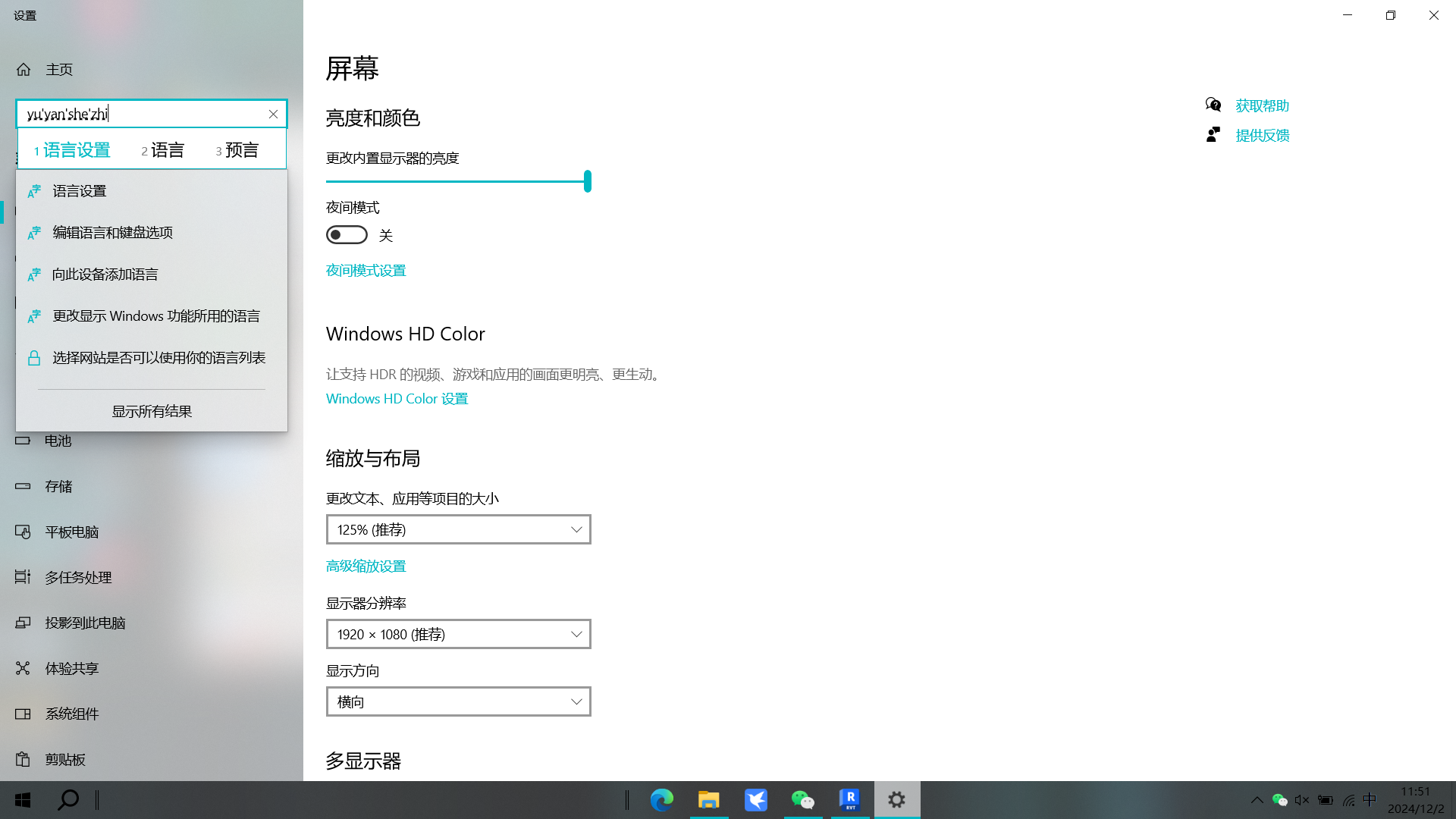
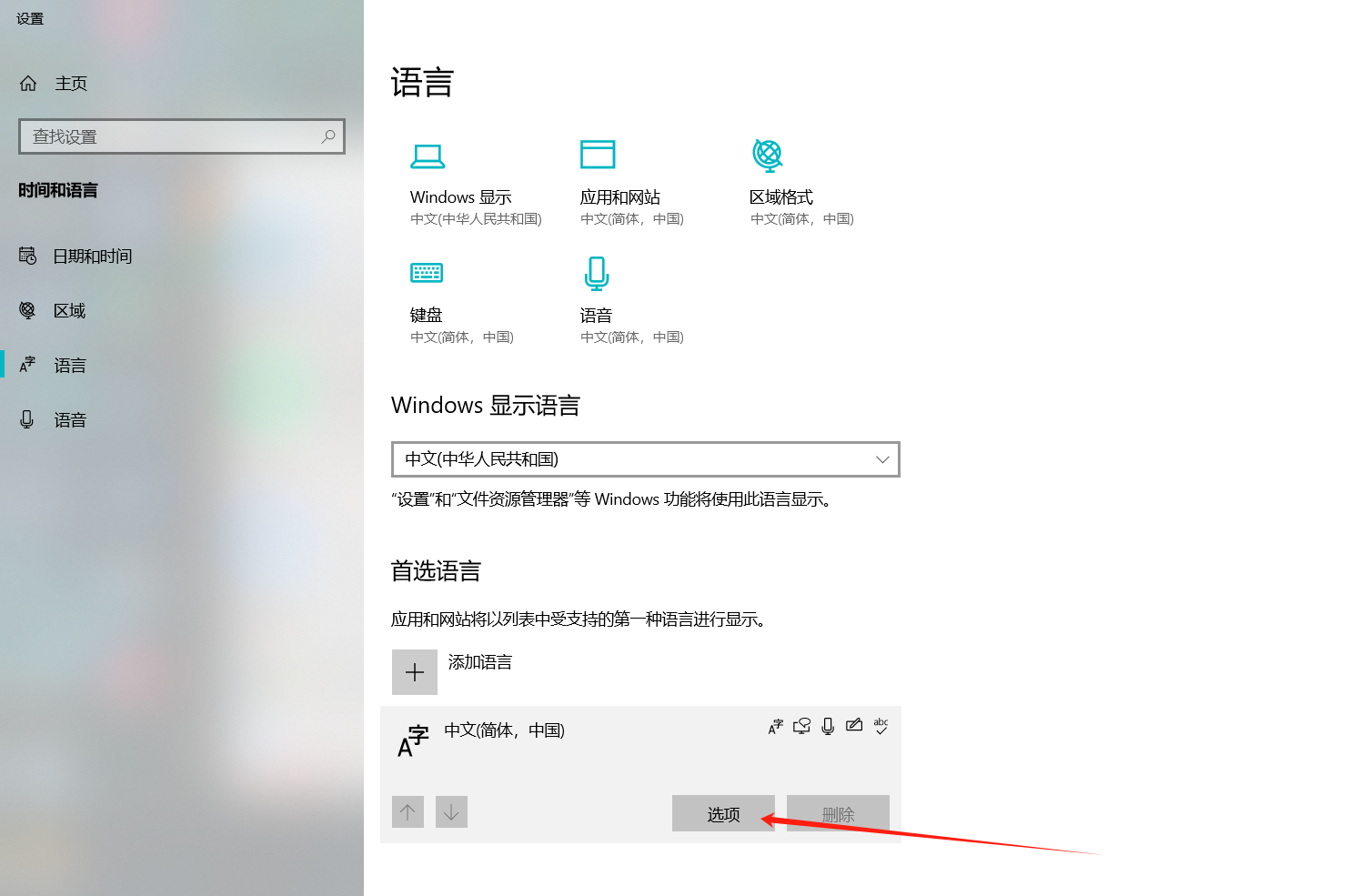
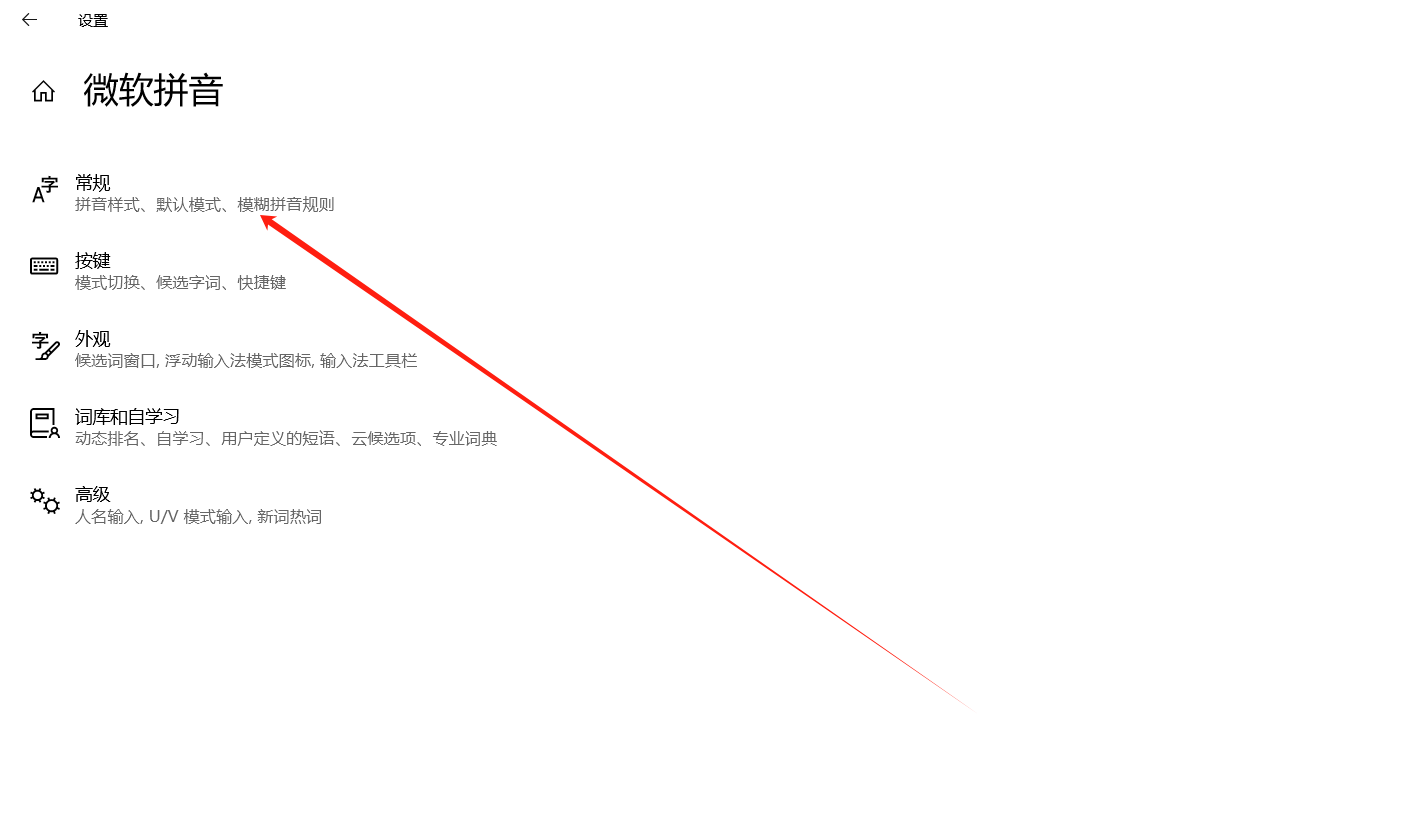
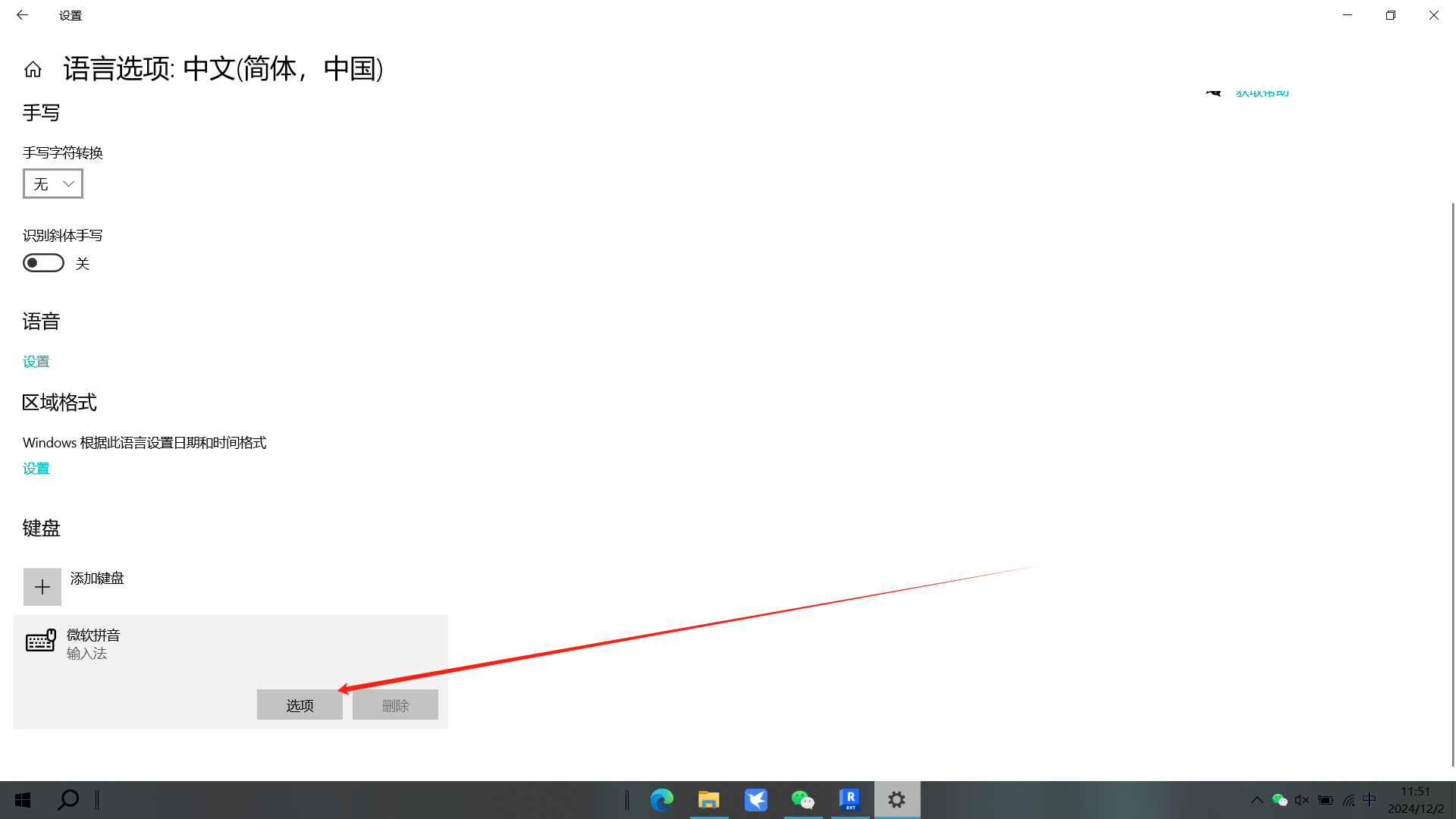
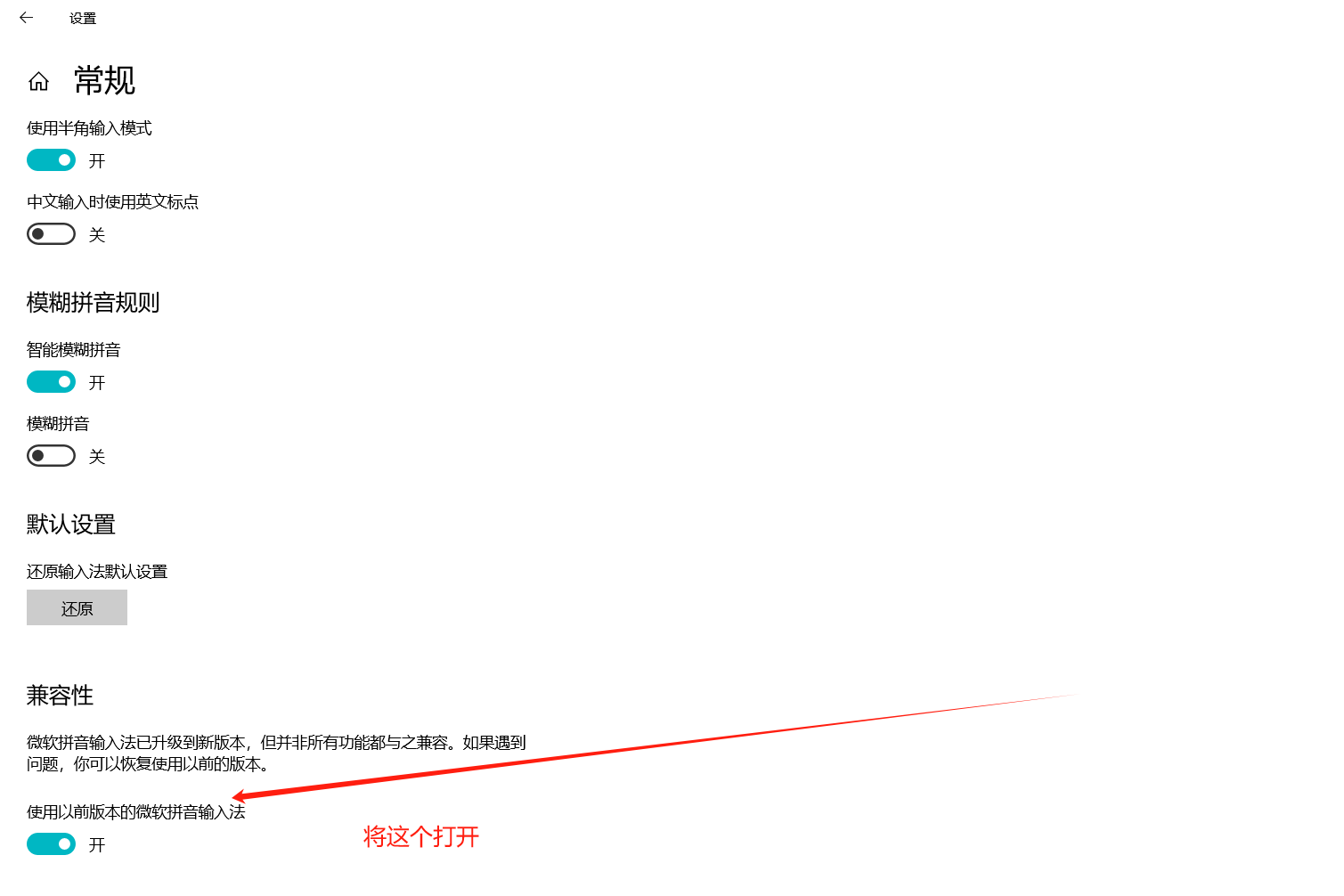
Symptom: When a tool loads families by default and a family needs upgrading, Revit freezes and stops responding.
Cause: The input method editor (IME) grabs focus during the family upgrade and blocks it.
Fix: Configure your IME as shown below (install the US English keyboard and switch to it).
# 2. Plugin conflict (most common)
Symptom: A command does nothing, or gets taken over by another add-in.
Cause: Too many add-ins installed — especially ones with similar functionality or from different vendors — causing resource contention, command override, or a direct conflict.
Fix:
- Open
C:\ProgramData\Autodesk\Revit\Addinsand temporarily disable non-essential third-party add-ins one by one - Test the failing command after disabling each one (do not disable a batch at once)
- Once you find the conflicting add-in, contact its vendor or keep it disabled
# 3. Template file problem
Symptom: The command misbehaves in the current project but works in another.
Cause: The project template is corrupt, misconfigured, or contains non-standard content that interferes with the plugin.
Fix:
- Create a new file using Revit's default architectural template
- Test the same command there
- If it works, your original template is the problem — clean or rebuild it
# 4. Incomplete Revit installation
Symptom: Every add-in command fails.
Fix:
- Repair: Control Panel → Programs and Features → find Revit → Repair
- Reinstall: If repair doesn't help, completely uninstall and reinstall Revit from a known-good installer
# 5. Plugin bug
Fix:
- Make sure you are on the latest version
- Report with the information listed on the Troubleshooting home page
- For intermittent issues that can't be reproduced reliably: turn on the diagnostic log, reproduce the problem once, and send us the log directory
# 6. What Catfish does when Revit starts (a short delay is normal)
Symptom: Right after opening Revit, Catfish's panels take a few seconds to become usable and the buttons are grey for a moment; the first time you right-drag to pop the radial menu ("bubble") it stutters.
Cause: The plugin isn't "done the moment it opens" — at startup it does four things in the background, and each one takes time:
| Step | What it does | Why it takes time |
|---|---|---|
| 1 | Load all commands | Registers every panel and button into Revit; pure in-memory work, usually the fastest |
| 2 | Fetch permissions online | Contacts the server to check the licence for all four tabs (Tools / Family Library / Base / Cloud); the four checks run in parallel, but a flaky network slows this down noticeably and the buttons stay grey longer |
| 3 | Load Revit's native commands | Collects all of Revit's built-in commands so the "bubble" menu can list them; it has to walk Revit's command list and reflect over the Ribbon tree — the most expensive step |
| 4 | Install the global mouse hook | The "right-drag to pop the radial menu" feature needs a global mouse hook; installed only when the bubble feature is on |
Bottom line: These steps together are where "those few seconds after opening Revit" come from — native commands + the global mouse hook (both part of the bubble) are the most expensive, which is why the first radial-menu pop stutters. This is normal loading, not a freeze:
- Just wait a moment after opening Revit, or the first time you use the bubble; it is fast afterwards
- A flaky network clearly affects step 2 — the "greyed-out licence buttons" last longer and recover on their own once the network is back
- Only a long freeze (more than ten-odd seconds with no response at all) counts as a problem → check 2. Plugin conflict and 4. Incomplete Revit installation
- If you don't use the bubble, turn it off in "Bubble settings" and the global mouse hook won't be installed at startup, saving a little startup time
# Grey command line (this is normal)
Not a bug. Most commands are multi-step: after pressing Enter for one step the command line turns grey, and the prompt appears at the bottom-left corner of the Revit window.
- Do whatever the bottom-left prompt says (e.g. "click to select an element", "select the direction of the main runner")
- Read the prompt for the required target — different commands need different objects (host, reference edge, clip strip direction, …)
- Most commands load a base family first; clicking before loading finishes does nothing
- Can't select something? Press
Tabto drill through. Many commands group their output, and a group cannot be selected directly — you mustTabinto it
Related
The typical case for "Tab through a group" is the framing back-brace / transfer layer / diagonal brace → see the Chinese video index, or the Framing notes.