# Activation · License · Rebinding
Scope
Licensing issues only. For installation and "plugin not loading", see Install · Not Loading.
# Quick reference
| Symptom | Cause | Fix |
|---|---|---|
| Worked fine, then suddenly says unauthorized | Antivirus cleared the registration cache | Re-activating |
| A code is shown but activation fails | That string is display-only | The step people get wrong |
| New computer / new machine | — | Lifetime licenses support rebinding — contact support |
| Icons are grey, commands do nothing | Unauthorized state | Turns back to full colour once activated |
| Can't find the version number in an older build | The location changed | Where to find the version |
# Registration and first login
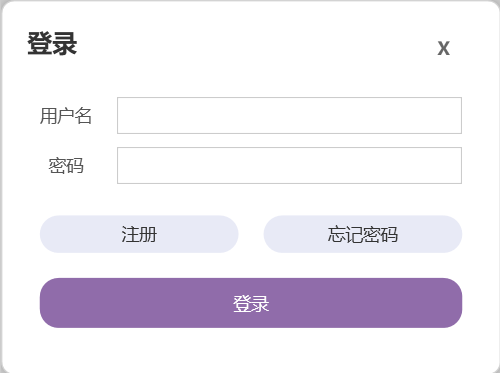
- After installing, a login window appears the first time you open Revit. Register your own username and password. This login is only for plugin features — if you don't need the plugin right now, simply close the window. Reopen Revit and log in when you need it.
- After logging in you stay logged in for 24 hours.
When unauthorized the icon is grey; once activated it returns to full colour and works normally:
# How to re-activate
The step people get wrong
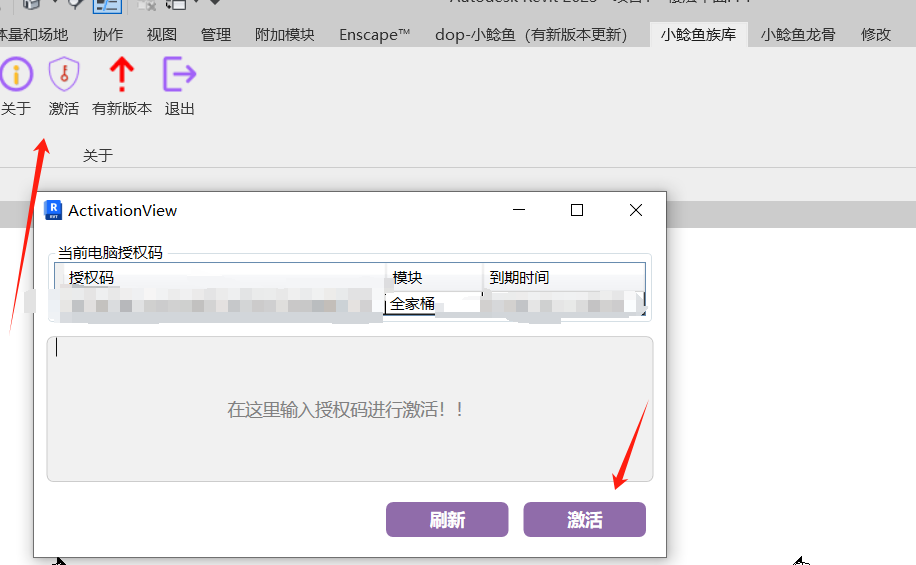
The code shown in the popup is display only — its purpose is to tell you which code this machine previously used. Reading it and clicking activate does nothing. You must re-enter the code in the field below.
- Open the activation entry point in the Family Library panel
- Re-enter your authorization code in the field below
- Click activate
Why does it suddenly fail? In the vast majority of cases your own antivirus cleared the registration cache — it is not a plugin fault. Therefore:
- Add the plugin directory to your antivirus allow-list to reduce this happening
- After every major Revit or plugin update, if it reports unauthorized, just re-enter the code as above
To obtain an authorization code, add WeChat liuyanhu001. Lifetime license users can rebind to another computer.
# New computer
Lifetime licenses support rebinding. After moving machines:
- Install the plugin on the new machine
- Activate with your existing code; if it reports the code is already in use, contact WeChat
liuyanhu001to rebind
The Family Library panel also has "About" and "Log out"
- Activate — enter your authorization code
- Log out — sign out of the current account
- About — see the plugin version
# Diagnostic log
The plugin has a built-in diagnostic log, off by default (including in released builds).
When to turn it on: for intermittent bugs that don't happen every time — those are very hard to diagnose from a description alone.
How to use it:
- Turn the diagnostic log on
- Reproduce the problem once using the relevant command
- Send the files in the log directory to the developer
With the log we can determine exactly which step failed.
# Where to find the plugin version
- Newer builds: via the plugin's public panel (some builds show it under "About")
- Builds with a desktop window: open the standalone window to see it
- Older builds: under "About" in the Library panel, or from the plugin installation directory
When reporting a problem, please include the plugin version and Revit version year — see How to report a problem usefully.